Thursday, September 21, 2017
Download ROM MIUI 8 5 6 0 Fix 4G Global Stable untuk Redmi Note 3 Pro Kenzo
Download ROM MIUI 8 5 6 0 Fix 4G Global Stable untuk Redmi Note 3 Pro Kenzo

Pengguna Smart Phone Redmi Note 3 Pro [kenzo] Snapdragon terpilih telah mendapatkan pembaruan update OTA pada MIUI 8.5.6.0 ROM Global Stabel. Banyak sekali perbaikan pada versi ini, jika anda tidak ingin menunggu update pembaruan via OTA pada versi yang digunakan saat ini, anda dapat melakukan update secara manual.
Agar mempermudah download ROM MIUI 8.5.6.0 Global Stable untuk Redmi Note 3 Pro [Kenzo] dibawah ini sudah saya sertakan link download pada versi ini.
Changed Log :
System
- Fix Home screen stopped working after opening Second space in Lite mode (08-24)
- Fix Notifications about Second space messages didnt show up when DND mode was on (08-24)
- Fix-Week signal in some carrier networks (07-01)
- Fix with receiving calls after creating Second space (08- 24)
- Optimization Importing contacts from SIM cards (06-22)
- Fix-Couldnt set contact photos in Gallery in some cases (06-22)
- Fix Errors when adding contacts to a group (06-22)
- Fix Importing contacts from other devices (06-22)
- Fix-SIM contacts disappeared and reappeared after a reboot (0 6 22)
- optimization OTP messages arent shown on the Lock screen (06- 22)
- Fix - Notification shade issues (07 - 01)
- Delete Mi Live is no longer pre-installed (08-24)
- Fix-Adjusted percentage calculations (08-24)
- Optimization Updates default themes (08-24)
- Fix-Quick ball was visible on screen recordings (08-24)
- Fix- New calendar events couldnt be synced (06-22)
- Fix Issues with syncing messages and call history (06-22)
- New-App lock for Dual apps (06-22)
- New Selecting images in the Recent album (06-22)
- New Mi Community goes online in Singapore, Vietnam, Russia, and Indonesia (07-01)
- Optimization Front camera Beautify (06-22)
- Fix - Issues with Mi Mover (06-22)
- Fix-Switching spaces in Lite mode (06-22)
- Fix-Issues with Mi Drop in Second space (06-22)
- Fix-Issues with scientific calculator (06-22)
- Fix-Issues with manual sync in Recorder (06-22)
- Fix UI adjustments for charging (06-22)
- Fix-Contacts couldnt be saved in some cases (06-22)
- Fix-Search issues in Explorer for RTL languages (06-22)
- Fix-Mi Drops issues caused by Android incompatibility (O6-22)
- Fix-Photos couldnt be synced in some cases (06-22)
- Fix-Font issues in video editor (06-22)
- Fix UI text wasnt fully displayed in some cases (06-22)
- Fix - Scaling issues with profile pics in People (06-22)
- Fix - Issues with SMS notifications in the DND mode in Second space (06 - 22)
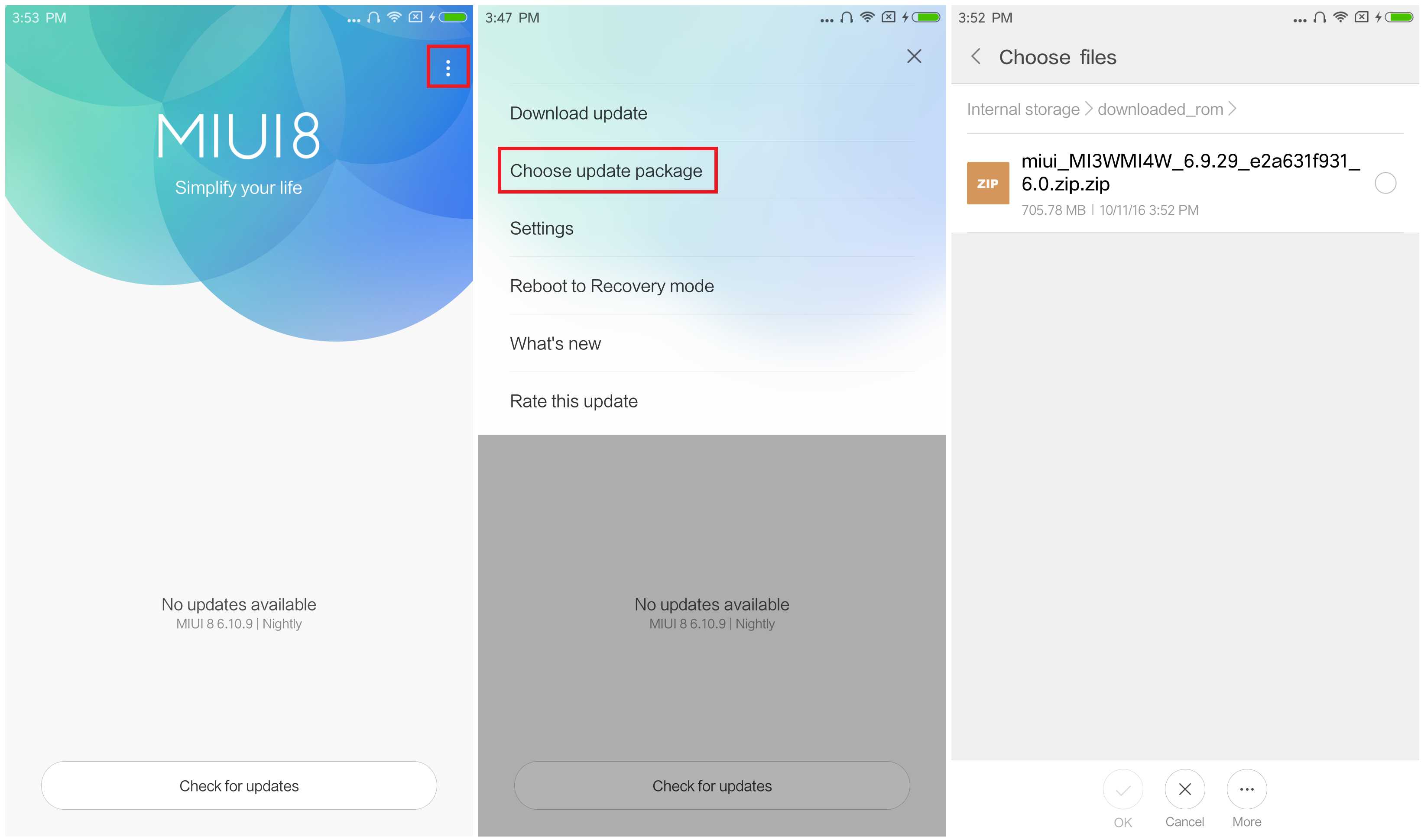
Untuk melakukan update secara manual, dapat mengklik aplikasi pembaruan Xiaomi smartphone atau dengan mengakses Settings -> About Phone -> System updates [klik tiga titik pada sudut kanan atas] > temukan file update.zip pembaruan yang telah anda download tadi.
Namun bagi yang ingin Fix 4G pada versi MIUI 8.5.6.0 Redmi Note 3 Pro [Kenzo] ini dapat menggunakan salah satu Fix 4G di bawah ini.
Sedangkan pada versi Non UBL yang sudah mengikut tutorial Fix 4G Non UBL pada tutorial MIUI 8.2.2.0, 8.2.3.0 maupun 8.2.4.0 dapat melakukan update pembaruan ROM melalui TWRP dan jangan lupa Install kembali Fix 4G MIUI suport MIUI 7 dan 8 setelah selesai update ROM, kemudian baru lakukan reboot system tanpa harus wipe cache terlebih dahulu.
Segala resiko selama proses flashing/install ditanggung pengguna !!
Terima kasih atas kunjungannya.
download file now

Flash Redmi 1S Global developer build on Global stable build
Flash Redmi 1S Global developer build on Global stable build


download file now
Tuesday, September 19, 2017
Flashing a Global ROM onto the Xiaomi Redmi Note 3 Pro Snapdragon 650
Flashing a Global ROM onto the Xiaomi Redmi Note 3 Pro Snapdragon 650
During yesterdays trip to Stokenchurch to meet up with some fellow phone fanatics, I purchased a Xiaomi Redmi Note 3 Pro second hand off one of the guys at the meet. No doubt I will go into more details in a future post about the differences between this phone and the Mediatek (non-Pro) version, but in this post I will provided an overview of how I transitioned from the stock Chinese ROM to the Global ROM.
A similar procedure is likely needed for other Snapdragon SoC Xiaomi devices, although I have only tried the Redmi Note 3 Pro myself.
Preparation
We will need to download the following ROM images and tools before proceeding:
Chinese Developer ROM
MIUI Flashing tool
Redmi Note 3 Latest Qualcomm Global Stable (Fastboot ROM)
Unlocking tool
15 second adb installer (if adb and fastboot are not already installed on your PC)
Stage 1 - Changing from the Stable ROM to a Developer ROM
In order to unlock the bootloader on the Xiaomi Redmi Note 3 Pro you need to be on the Developer firmware. This is unlike my experience with the Mediatek version, where an unlock could be performed from either ROM channel.
If you try to unlock the ROM from Stable, the unlock process will fail at 50% with the error message "Current account is different from the account info on the device"
Ensure you are running the latest version of the Stable Chinese ROM (check in the Updater app) and then flash the Developer ROM via the built in Updater app.
To do this, copy the zip file onto the device, run the Updater app, select the button at the top right and select "Chose Update Package". Select the zip file and off you go - you should have changed from the Stable channel to the Developer channel.
Stage 2 - Unlocking the bootloader
In a previous post I have gone into details of how to request a bootloader unlock from Xiaomi. If you have requested an unlock previously, you should already have the permissions on your Mi account to unlock the bootloader directly, but if not then it is worth checking this post.
Ensure that you are logged onto your Mi account in the phone, reboot into Fastboot mode (from device off, hold down power and volume down), run up the Unlocking tool MiFlashUnlock, sign in and go through the unlock procedure.
Stage 3 - Flashing the Global ROM
Once the bootloader is unlocked you can flash the Global ROM via the MiPhone flash tool. Once again, unlike the SP Flash tool used for Mediatek SoCs, with the Snapdragon SoC the bootloader must be unlocked before we can flash using this tool.
We need to unzip the tgz completely to get the extracted files and then use the MiFlash tool to flash the device. The tool is a little picky on the location of the files, so I put them in a folder off the root of the C drive.
It should be noted that fastboot and adb must be preinstalled for the tool to work - if required, download the 15 second adb installer above.
During the installation of the MiFlash tool, all sorts of weird instructions are given, mentioning a "Settings" application. I ignored all this, as there was no settings application installed & all went well without any further configuration.
To flash the Global ROM, the phone must be in Fastboot mode (Power and Vol down) and attached via USB to the PC. We must locate the unzipped global images folder using the Browse button (where the batch files are located) and then select refresh, which should pick up the device. Select "Flash all" as the flash option and then hit the Flash button.
Hopefully once everything has completed, the phone will boot up with the Global image, with all the Google services and a distinct lack of Chinese apps!
download file now
Monday, September 18, 2017
Flashing a Global ROM on a Snapdragon based Xiaomi phone without a Bootloader Unlock
Flashing a Global ROM on a Snapdragon based Xiaomi phone without a Bootloader Unlock
One of the limitations with Xiaomis new bootloader locking policy is that a user can only unlock the bootloader of one device every 30 days, and then only after you have successfully applied for your Mi account to have this right.
When importing a Xiaomi phone from China, you will find that the installed ROM will either be a genuine Chinese Xiaomi ROM, without pre-installed Google Services and with some settings not tailored for the western market, or a shop ROM, which has Google Services and western-centric settings, but will never get any updates.
Some of Xiaomis devices (usually those available in other markets, such as India) have Global ROMs, which are official Xiaomi ROMs with western-centric settings that will get updates for the supported life of the device. It is these that are the most suitable for the western market - if they are available!
In a previous post, I outlined the method by which you could change from the stock Chinese ROM to a Global ROM, but this involved requesting a bootloader unlock. It also assumes you have a stock Chinese ROM and not a modified shop ROM.
In this post I will describe how to flash the Global ROM without requiring an unlocked bootloader from any firmware.
This should also work to get back to a stock Chinese image if your device is shipped with a shop ROM.
Suitability
We will need to download the following ROM images and tools before proceeding:
Mi Flash tool
Global Fastboot ROM (for the relevant device)
15 second adb installer (if adb and fastboot are not already installed on your PC)
Stage 1 - Installing the Mi Flash tool
Install the Mi Flash tool. This will copy the relevant Qualcomm drivers onto the hard drive in addition to installing the tool. Dont worry about any instructions that pop up during and after installation. Just go ahead and install.
Stage 2 - Enabling USB Debugging
In order to bypass the locked bootloader, we need to enter EDL mode. This is accomplished via adb.
adb devices (to make sure the phone is connected)
adb reboot edl
Stage 4 - Change the QHUSB_BULK driver to the Qualcomm HS-USB driver
In EDL mode, we need to change the default QHUSB_BULK driver that Windows installs with the proper Qualcomm HS-USB driver that is present in the Mi Flash tool installation folder.
1. Open Device Manager on the PC and locate the QHUSB_BULK driver.
2. Right click & Update Driver Software
3. Select Browse my computer for driver software
4. Locate C:Program Files (x86)XiaomiMiPhoneQualcomm
5. Select "Let me pick from a list of device drivers on my computer"
6. Select Qualcomm HS-USB QDLoader 9008
At this stage, I got an error message saying that the USB device could not be recognised. I powered the device off and back on by holding down the Power button and went back to Stage 3 to return to EDL mode.
Once complete, the new Qualcomm driver should be present in Device Manager in the following location:
Ports (COM & LPT) / Qualcomm HS-USB QDLoader 9008
Stage 5 - Unpacking the Fastboot driver
Locate the downloaded Fastboot .tgz file and unpack it completely. I used 7-Zip to accomplish this.
Unpack the .tgz file to a .tar
Unpack the tar file to a folder containing the image
Stage 6 - Flashing via Mi Flash
Run the Mi Flash tool, that is now installed on the PC.
1. Locate the unzipped global images folder using the Browse button (where the batch files are located)
2. Select Refresh, which should pick up the device.
3. Select "Flash all" as the flash option
4. Hit the Flash button.
Once complete, remove the cable, power down and reboot.
If flash fails
While the procedure worked perfectly for me, if for any reason the flash failed and you need to re-enter EDL mode without being able to boot, you can do the following:
1. Enter Fastboot mode through Power & Volume Down
2. Type the following fastboot commands
fastboot devices (to ensure the phone is connected)
fastboot oem edl
The above should return you to EDL mode.
download file now
Thursday, September 7, 2017
Download MIUI 9 for Redmi Note 4 Qualcomm 4X Global
Download MIUI 9 for Redmi Note 4 Qualcomm 4X Global

Downloads
1.Download MIUI 9 for Redmi Note 4 Qualcomm /4XHow TO INSTALL MIUI 9 On Redmi Note 4 Qualcomm /4X
- Connect your device to the Windows PC/laptop via a micro USB cable, and copy the ROM file downloaded in Step 1 into the folder �downloaded_rom� in the internal storage of your device.
- Launch �Updater� app on your device?
- MIUI 6/7/8?Click the ��� icon at the top-right corner, select �Choose update package�, and choose the ROM file you�ve put in �downloaded_rom� in Step 2.
- MIUI V5?Press the Menu button, select �Choose update package�, and choose the ROM file you�ve put in �downloaded_rom� in Step 2.
- After choosing the right ROM file, your device will begin upgrading. Your device should automatically boot to the new version when the update is completed.
- After choosing the right ROM file, your device will begin upgrading. Your device should automatically boot to the new version when the update is completed.
download file now
Wednesday, September 6, 2017
Download ROM MIUI 8 5 3 0 Fix 4G Global Stable untuk Redmi Note 3 Pro Kenzo
Download ROM MIUI 8 5 3 0 Fix 4G Global Stable untuk Redmi Note 3 Pro Kenzo
Pengguna Smart Phone Redmi Note 3 Pro [kenzo] Snapdragon terpilih telah mendapatkan pembaruan update OTA pada MIUI 8.5.3.0 ROM Global Stabel. Banyak sekali perbaikan pada versi ini, jika anda tidak ingin menunggu update pembaruan via OTA pada versi yang digunakan saat ini, anda dapat melakukan update secara manual.
Agar mempermudah download ROM MIUI 8.5.3.0 Global Stable untuk Redmi Note 3 Pro [Kenzo] dibawah ini sudah saya sertakan link download pada versi ini.
![Download ROM MIUI 8.5.3.0 + Fix 4G Global Stable untuk Redmi Note 3 Pro [Kenzo]](https://blogger.googleusercontent.com/img/b/R29vZ2xl/AVvXsEiCQjqnrIZacnDk4afwDxSaKnjMtrL63lAZ1BBBGYA_UBj25FuL_DmkoqdpesCE5RL7LPxcTIBx-SB4HkBq4e8uSWBSflWTLZGvPxkF50g9nfbUXFAgaFDt9npgKNi-jQt9m0KMIM_sFRE/s1600/Download+ROM+MIUI+8.5.3.0+%252B+Fix+4G+Global+Stable+untuk+Redmi+Note+3+%255BKenzo%255D.png "Download ROM MIUI 8.5.3.0 + Fix 4G Global Stable untuk Redmi Note 3 Pro [Kenzo]")
Changed Log :
Contacts
- Optimazion - Imprting cotacts from SIM card (06 - 22)
- Fix - Couldnt set Contact photos i Gallery in some cases (06 - 22)
- Fix - Errors when adding contacts to a group (06 - 22)
- Fix - Importing contacts from other devices (06 - 22)
- Fix - SIM Contacts disappeared and reappeared after a reboot (06 - 22)
Messaging
- Optimization - OTP messages arent shown on the lock screen (06 - 22)
Screen Recorder
- Fix - Issues with floating windows in Screen recorder (06 - 22)
Calender
- Fix - New calender events couldnt be synced (06 - 22)
Mi Cloud
- Fix - Issues with syncing messages and call history (06 - 22)
Other
- New - App lock for dual apps (06 - 22)
- New - Selecting images in the Recent album (06 - 22)
- Optimization - front camera Beautify (06 - 22)
- Fix - Issues with Mi Mover (06 - 22)
- Fix - Switching spaces in Lite mode (06 - 22)
- Fix - Issues with Mi Drop in Second Space (06 - 22)
- Fix - Issues with scientific calculator (06 - 22)
- Fix - Issues with manual sync in Recorder (06 - 22)
- Fix - UI adjustments for charging (06 - 22)
- Fix - Contacts couldnt be saved in some cases (06 - 22)
- Fix - Search issues in Explorer for RTL languages (06 - 22)
- Fix - Mi Drops issues caused by Android incompatibility (06 - 22)
- Fix - Photos couldnt be synced in some cases (06 - 22)
- Fix - Font issues in video editor (06 - 22)
- Fix - UI text wasnt fully displayed in some cases (06 - 22)
- Fix - Scaling issues with profile pics in People (06 - 22)
- Fix - Issues with SMS notifcations in the DND mode in Second space (06 - 22)
Untuk melakukan update secara manual, dapat mengklik aplikasi pembaruan Xiaomi smartphone atau dengan mengakses Settings -> About Phone -> System updates [klik tiga titik pada sudut kanan atas] > temukan file update.zip pembaruan yang telah anda download tadi.
Namun bagi yang ingin Fix 4G pada versi MIUI 8.5.3.0 Redmi Note 3 Pro [Kenzo] ini dapat menggunakan salah satu Fix 4G di bawah ini.
Sedangkan pada versi Non UBL yang sudah mengikut tutorial Fix 4G Non UBL pada tutorial MIUI 8.2.2.0, 8.2.3.0 maupun 8.2.4.0 dapat melakukan update pembaruan ROM melalui TWRP dan jangan lupa Install kembali Fix 4G MIUI suport MIUI 7 dan 8 setelah selesai update ROM, kemudian baru lakukan reboot system tanpa harus wipe cache terlebih dahulu.
Segala resiko selama proses flashing/install ditanggung pengguna !!
Terima kasih atas kunjungannya.
download file now
Sunday, September 3, 2017
V6 6 2 0 KXDMICF Global Miui for Mi3 Mi4 Leaked
V6 6 2 0 KXDMICF Global Miui for Mi3 Mi4 Leaked


Changelog MIUI ROM 6.6.2.0 (KXDCNCF) MI3/MI4 STABLE
Fix - Lagging issue in some situations (04-17)
Fix -Phone got heat/high power consumption issues in some situations (06-04)
Phone
New - Added flash notification light for incoming calls (Call settings - Incoming call settings - Flash when ringing) (04-23)
New - If a call from a unknown number is hung up shortly after it is taken, a prompt will show to ask if you would like to report that number (05-20)
New - Internet calling function supports video calls (Mi Note Pro) (05-25)
Optimization - Optimized answering button icon of Internet calls (04-21)
Contacts
Fix - Add contacts to blocklist function disappeared (04-22)
Fix - Selecting online avatars when editing contacts might cause contacts avatars display error (04-22)
Fix - Sometimes, search contacts function could not be used (04-22)
Fix - FC error after checking SIM card storage (05-12)Fix - Contacts app might not respond after logging out of Xiaomi account (05-12)
Fix - Lagging/ FC errors when importing or deleting SIM card contacts (05-21)
Fix - FC error caused by using single quotation marks when searching (05-21)
Fix - Lagging/ FC errors when importing or deleting SIM card contacts (05-27)
Messaging
New - Report junk messages feature (05-13)
Optimization - Optimized SMS conversation page UI style (05-12)
Optimization - Optimized contacts namecard UI in messages (05-13)
Optimization - SMS delivery status can be updated more quickly (05-28)
Fix - Contact info in SMS displayed incorrectly after switching language (04-14)
Fix - Deleting audio messages might cause FC error (04-14)
Fix - Contact info at the conversation page top left corner might overlap (04-14)
Fix - MMS that were not sent could not be resent (04-14)
Fix - Unsent SMS could not be sent automatically after Airplane mode was disabled (04-24)
Fix - UI display error when editing message recipient (05-13)
Fix - Mi Band Vibrate for notifications feature did not work after receiving a MMS (05-20)
Fix - Messaging app would stop responding if there were too many receipts when sending group messages (05-20)
Fix - Sometimes Slideshow messages could not be sent (05-27)
Lockscreen, Status Bar, Notification Bar
New - Added hotspot icon in status bar when portable hotspot is enabled (05-19)
New - Added charging icon in status bar (05-19)
New - Support displaying virtual network operators names (05-19)
New - Lockscreen music control (05-27)New - Added unlocking gesture recognizing mechanism to avoid unlocking caused by misoperation (06-02)
Optimization - Optimized status bar icons color contrast (05-20)
Optimization - Launching speed of notifications managing page (05-27)
Fix - Sometimes, long pressing notifications directed to the wrong app (05-06)
Fix - Sometimes, Gaussian Blur effect did not work when pulling down notification shade (05-12)
Fix - Sometimes, operator information displayed incorrectly for dual-SIM devices (05-12)
Fix - Sometimes Mi Band could not unlock screen (06-01)
Home screen
Fix - Downloading apps from Games center did not show icons (04-13)
Fix - Icons were disappeared when opening folders in Mi Space (04-16)
Fix - Home screen wallpaper was enlarged after OTA update (04-16)
Fix - Locking apps had error when entering Recents page for the first time (05-12)
Camera
Optimization - Timer is set to 5s by default (05-08)
Fix - Camera FC error sometimes (05-08)
Fix - Sometimes SD videos previews were stretched (06-11)
Fix - Sometimes, HDR button displayed status incorrectly (06-11)
Gallery
New - Added video album to help manage all videos on your device (05-21)
Optimization - Loading speed when opening large images in cloud albums (05-21)
Optimization - Reduced RAM usage when viewing large images (05-21)
Optimization - Enhanced speed of entering Gallery from Camera (05-21)
Optimization - Enhanced smoothness when scrolling in front page (05-21)
Optimization - Loading speed of Offline page (05-21)
Optimization - Modified setting password icon in secret album page (05-21)
Optimization - Optimized Cloud albums arrangement method (06-02)
Optimization - Optimized cloud albums list UI when choosing to add an image to a cloud album (06-02)
Fix - Random FC errors when viewing images in start page (05-19)
Fix - Layout error when choosing several images to add to cloud albums (Mi Note) (05-21)
Fix - Gallery had a high CPU occupancy after booting up (05-21)
Fix - Sometimes, deleting offline albums caused FC error (05-21)
Fix - Unselect all option could not be chosen after choosing Select all in start page (06-02)
Music
New - Sort music by name, date, and language in All songs, Offline, and Favorites list (04-15)
New - Added Personal module (04-22)Optimization - Added album names in music list (04-15)
Optimization - Album cover on playing page was set as small by default (04-15)
Optimization - Music start page is changed to My Music (04-28)
Optimization - Optimized albums default covers (05-13)
Fix - Volume would decrease if new songs were added to the current playing music list (04-15)
Fix - Lyric playing status was incorrect after skipping a song (04-15)
Fix - Listening to local music could choose streaming quality (04-15)
Fix - Part of playing page background was transparent (04-15)
Fix - Display error when entering playing page (04-15)
Fix - Button status displayed differently after sleep mode ended (05-13)
Fix - Sorting buttons texts did not show completely (05-13)
Fix - Album cover could be edited when both artist and album names were empty (05-13)
Weather
New - Share weather condition images. Support sharing images of selected modules (05-06)
Fix - Sometimes, weather animations displayed abnormally (05-19)
Fix - Sometimes, city weather background was black (05-27)
Fix - Weather animation displayed incorrectly sometimes (05-27)
Fix - Sometimes raining animations did not change directions according to gravity sensor (06-02)
Fix - RAM leak caused by sharing weather conditions (06-02)
Settings
New - Added transition animation when connecting WiFi (
05-21)Optimization - Apps notification will not ring in Do not disturb mode (04-16)
Fix - Sometimes, unlock with Mi Band did not work (04-29)
Fix - Sometimes, incorrect WiFi password prompt did not show after a long time (05-21)
Market
New - Brand new MIUI App store (05-18)
New - Most installed app is list first in searching result page (05-18)
Optimization - Optimized searching result page UI style in special situations (05-18)
Optimization - Optimized the prompt when failed to install some apps due to lack of system module (05-20)
Optimization - Network diagnostic feature is moved to Feedback page (06-01)
Optimization - Optimized system performance during apps downloading/installing process (06-01)
Fix - Sometimes Feedback page had FC error (05-18)Fix - Sometimes entering App store caused FC error (06-01)
File Explorer
Fix - Files in WiFi router could not be opened (04-14)
Fix - Lagging issue when loading thumbnails (04-16)
Fix - Lagging issue when loading thumbnails (05-21)
New - Contacts managing feature (05-12)
Optimization - Support retrying if failed to download email content (05-12)
Fix - IMAP and POP3 accounts could not open zip type attachments (05-12)
Fix - UI error when using large font (05-12)
Browser
Optimization - Optimized address bar height (05-26)
Recorder
Fix - Recording completed notification did not disappear after pressing the notification to enter Recorder (04-28)
Calendar
Optimization - New events can be created without titles (05-14)
Fix - Editing reminders might cause Calendar to FC (04-21)
Fix - Sometimes, weather condition displayed incorrectly in Calendar (05-28)
Delete - Removed Dismiss button for events notification reminders (06-02)
Data Usage
Optimization - Added settings button on lockscreen notifications page (06-01)
New - Support viewing network permissions after testing network condition (06-02)
Fix - Setting DNS when testing network might cause FC error (06-02)
Clock / Calculator
Fix - UI display error when using large font (05-19)
Mi Credit
New - New Mi Credits center front page (04-15)
New - Added FAQ page (04-15)
New - Added Send to desktop feature (04-15)
New - Multiple activities can be displayed in start page (05-13)
Optimization - There will be a prompt when top-up amount is over the limit (05-13)
Optimization - Pressing on empty space will close the top-up window (05-13)
Fix - Display error in activities page (05-13)
Optimization - Ported the new Mi Credit center start page to Mi Note and Mi Note Pro (05-13)
Optimization - Optimized Mi Credit center start page UI when using large font (05-28)
Fix - Display error in status bar and title bar when there were network errors in Mi Credit center start page (05-13)
Fix - Using pattern lock might cause display error in some pages (05-13)
Fix - Pattern lock displayed incorrectly (05-13)
Yellow Page
Optimization - Optimized notifications mechanism at night for express delivery tracking (06-09)
Mi Cloud
New - Alarm clock settings can be restored from Mi Cloud when switching to new devices (05-19)
New - New Mi Cloud membership system. Allow users to choose from three membership levels (05-20)
Optimization - Optimized Mi Cloud settings page (05-19)
MI Wallet
Fix - FC error caused by switching accounts (06-10)
Fix - UI display error after changing radio sound quality in Settings (05-26)
Download:
download file now